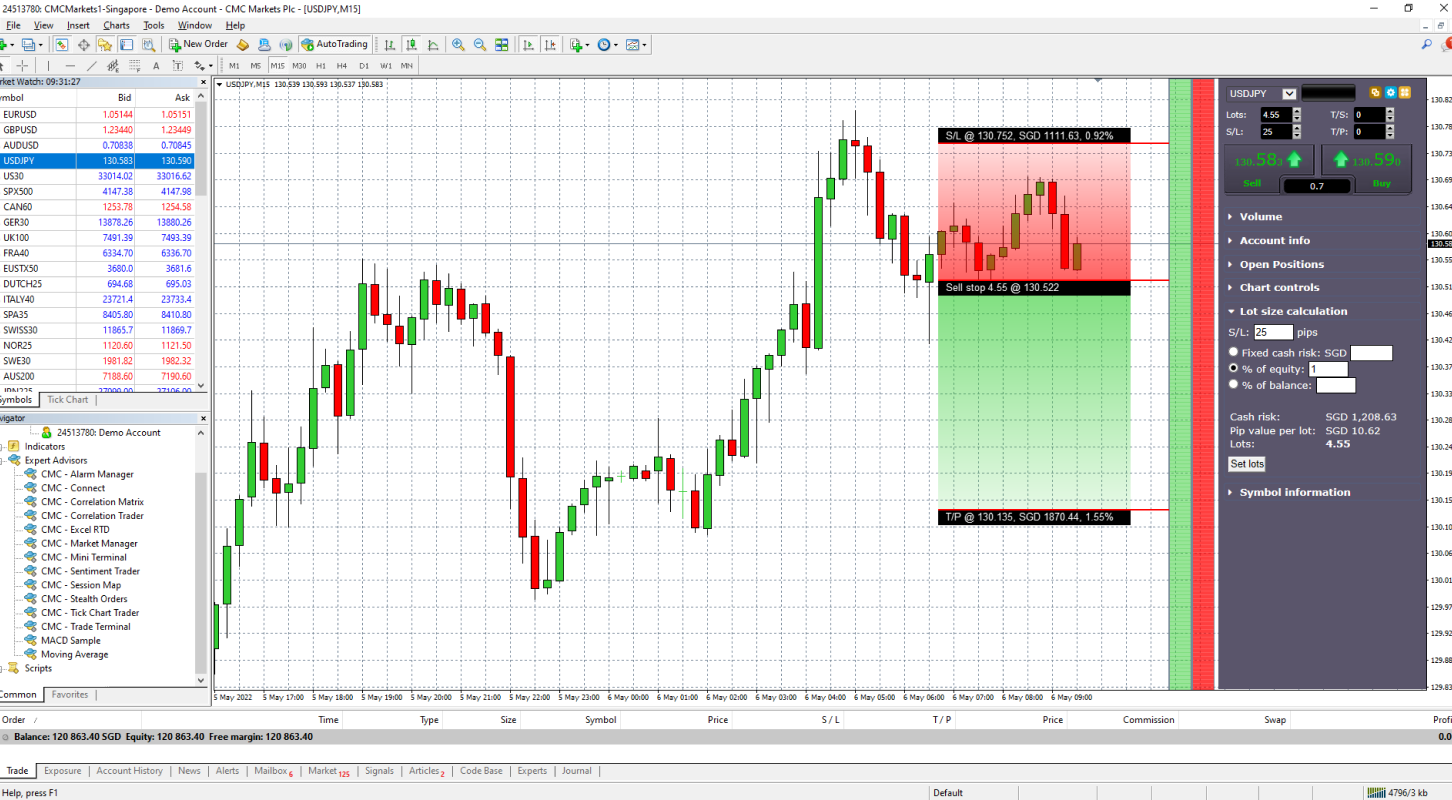
If you are involved in a prop company struggle, you understand every second matters. Whether you’re holding positions during significant news events or scalping in volatile markets, speed and accuracy can make the difference between losing money and making it. Even while psychology and strategy are discussed, which are undoubtedly crucial, most traders ignore one underrated secret weapon: shortcut keys in MetaTrader 5.
Keyboard shortcuts
Here, convenience is not all that we are discussing. We’re talking about making your trading platform work like an extension of your brain, allowing you to respond more quickly, make modifications instantly, and execute your trades with fewer wasted seconds. You can get an advantage in a world where every pip counts if you can navigate MT5 with just your fingers.
As a funded trader or someone working through a hurdle to get there, let’s break down the f MetaTrader 5 shortcuts you truly need to know. Just the actual deal, no-nonsense.
Why Shortcuts Matter, Especially in Prop Firm Challenges
Prop firm trials are like a trader’s boot camp. You have stringent guidelines, limited drawdowns, and frequently a deadline. It’s not only about turning a profit. It’s also about making rapid, wise decisions while limiting risk.
Consider this: the price is gradually approaching your level. You have the Buy button hovering over it. Rather than navigating menus, modifying lot sizes, or struggling with chart settings, you simply press a few buttons and you’re in the transaction, risk-managed and all.
This isn’t about being lazy. It’s about being efficient.
Shortcuts help you:
- Enter and exit trades faster
- Avoid costly misclicks
- Switch charts and timeframes on the fly
- Manage risk with fewer distractions
- Stay focused on price action instead of the UI
F9 The Trade Panel Shortcut
Use the F9 key. Hit it once and the trade order window pops up instantly.
No more clicking New Order or digging through the top menu. If you’re watching a setup develop and you want to get ready to strike, F9 is your fast track. From there, you can adjust your lot size, stop loss, and take profit, then hit buy or sell.
When markets are moving fast, this one’s a lifesaver.
F8 Change Chart Properties
Sometimes a chart just seems a little sloppy. If you’re like other prop firm traders, you have a preferred style for your charts, whether it’s gridline-free candlesticks or a simple black background.
The Properties window appears when you press F8. You can then adjust the background, grid, colors, scale, and more.
This shortcut helps to establish a neat, concentrated workstation rather than placing trades directly. It’s more important than you might believe if you spend hours looking at charts.
Ctrl + Y Show/Hide Period Separators
This one is little but powerful. Have you ever wanted to divide trade days or weeks visually without having to create lines by hand?
Ctrl + Y does that instantly.
Period separators allow you to see the daily behavior of the market. This shortcut gives the structure of your chart without the clutter, which is useful when you’re analyzing your trades or doing quick backtesting.
Ctrl + M Open the Market Watch Panel
Do you want to monitor several pairs without making your charts look cluttered? Press Ctrl + M to open the Market Watch window.
It provides access to several instruments, lets you open charts rapidly, and displays bid and ask prices. Additionally, you can drag and drop symbols straight onto a chart or add them. Extremely useful when you need to quickly switch between pairs while checking the marketplace for a challenge.
Ctrl + T to Trade Terminal a.k.a. Your Command Center
All your open trades, pending orders, and account information, including balance, equity, margin, etc., are displayed in the Trade Terminal.
To turn it on or off, press Ctrl + T. This window is essential while participating in a prop challenge. You will be manually closing trades, monitoring your drawdown, and monitoring your floating P/L all the time. Do you need this panel up quickly? Ctrl + T. Simple.
Ctrl + N Navigator Panel
Do you need to change accounts? Do you want to rapidly load an expert advisor or indicator?
To access the Navigator, press Ctrl + N. It serves as your central location for managing accounts, scripts, custom indicators, EAs, and everything else related to the engine.
This is particularly useful for people who use bots or risk management programs during their challenges. Save time by not digging a shortcut.
Ctrl + F Crosshair Mode
Sometimes all that is required is the measurement of the distance between two points of sale or time intervals. Press Ctrl + F to bring up the Crosshair tool.
Once activated, you can quickly examine how many candles and pip values are between two locations by dragging around the chart. This is a jackpot for prop traders who live on accuracy.
Ctrl + G Toggle Grid On/Off
For those who fall into the latter category, Ctrl + G allows you to quickly turn the grid on and off. It’s the fastest method for clearing your screen so you can see price action clearly.